

Thingport Grab
A browser extension for Chrome, Edge and Firefox that imports MakerWorld, Thingiverse, and Printables models into your self-hosted Thingport instance without leaving the provider’s site. Visiting a model, collection, or Thingiverse Likes page shows a floating Thingport icon; clicking it opens a small panel to pick what to import (and, for a single model, an optional destination collection), then imports it the same way Thingport’s own ”+ Add > Import” does.
Get it for Edge from Microsoft Edge Add-ons. Chrome and Firefox builds are on the releases page until their store listings are live.
It talks directly to your Thingport instance’s API from the extension’s background script — no separate server, no data sent anywhere else. See the privacy policy for exactly what it stores and sends.
Screenshots
 Printables -- import panel on a model page |
 Imported -- with a link straight to the model in Thingport |
 MakerWorld -- import panel on a model page |
 Thingiverse -- import panel on a thing page |
 Not set up yet -- the grayed-out icon's setup dialog |
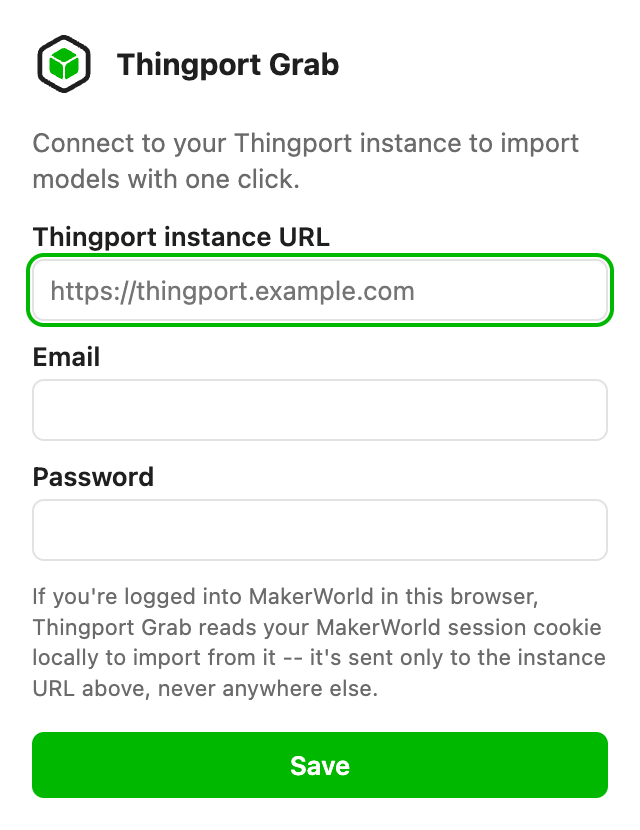 Popup -- before setup |
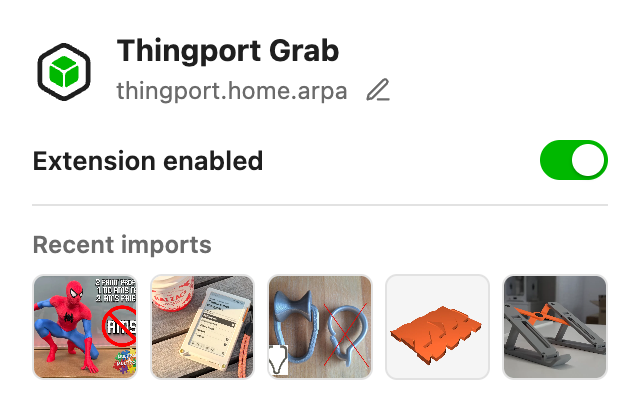 Popup -- connected, with recent imports |
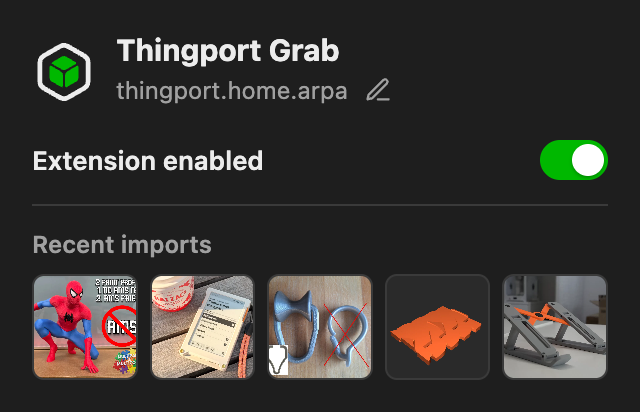 Popup -- dark mode |
Install
Microsoft Edge
Install Thingport Grab from Microsoft Edge Add-ons — click Get, then click the new Thingport icon in your toolbar (it may be under the puzzle-piece Extensions button) and enter your instance’s URL and your Thingport login. Edge keeps it up to date from then on.
Alternative: install the Edge build by hand
Only needed if you can’t use the store, e.g. to try a build before it’s been published there:
- Download
thingport-grab-edge.zipfrom theextension-latestrelease and unzip it somewhere permanent (Edge loads the extension from that folder every time it starts, so don’t delete it). - Open
edge://extensionsand turn on Developer mode (in the left sidebar). - Click Load unpacked and select the unzipped folder.
A hand-installed copy doesn’t update itself — repeat these steps for a newer version.
Chrome / other Chromium browsers
As a developer-mode “unpacked” extension, until the Chrome Web Store listing is live:
- Download
thingport-grab-chrome.zipfrom the in-app Download page (or theextension-latestrelease) and unzip it somewhere permanent (don’t delete the folder afterwards — the browser loads the extension from it every time it starts). - Open
chrome://extensionsand turn on Developer mode (top right). - Click Load unpacked and select the unzipped folder.
- Click the new Thingport icon in your toolbar, enter your instance’s URL and your Thingport login, and save.
Firefox
Firefox refuses to install any unsigned extension outside of Developer Edition/Nightly, even for
local/unpacked use — so unlike Chrome, this needs an actual Mozilla-signed build, not just a zip.
CI signs one on every push to main (see Releases in the
development guide):
- Download
thingport-grab-firefox.xpifrom the in-app Download page (or theextension-latestrelease). - Open it directly (double-click, or
File > Open Filein Firefox) — or drag it onto a Firefox window — and confirm the install prompt. - Click the new Thingport icon in your toolbar, enter your instance’s URL and your Thingport login, and save.
It’s signed for self-distribution (the “unlisted” channel) — signing is still required for Firefox to allow the install at all, and it’s what lets Firefox treat later versions as updates to the same install instead of a fresh add-on. A listing on addons.mozilla.org is in review.
Setup
The popup asks for your instance URL (e.g. https://thingport.example.com) and your Thingport
email/password once. Until that’s done, importable pages show a grayed-out Thingport icon; clicking
it explains what’s needed and opens that same setup form (the toolbar popup, or the same form in a
tab where the browser won’t let the extension open its popup itself). Saving requests permission to
reach that one origin and validates the login before storing anything. After that, the toolbar icon
turns from the dark/inactive icon to the color/active one, and the floating icon becomes the normal
import button. Reopen the popup any time to change the instance (the pencil next to its address) or
flip Extension enabled off to pause it without losing the saved setup.
The extension re-authenticates automatically as its session token nears expiry — there’s nothing to keep re-entering day to day. If your password changes or a session gets revoked server-side, the next import attempt will silently re-login with the stored credentials, or surface a clear error if those no longer work.
MakerWorld: no separate cookie setup needed
Importing from MakerWorld normally requires pasting a session cookie into Thingport’s Profile
settings by hand (MakerWorld’s own site sets it HttpOnly, which blocks a normal web page from
reading it — that’s the whole reason for the manual copy/paste). This extension reads that same
cookie directly from your browser instead, using the cookies API — a privileged, extension-only
capability explicitly allowed to read HttpOnly cookies, unlike a regular page’s own JavaScript.
It’s sent only to your own Thingport instance, as part of the same import request that needs it,
exactly like the cookie you’d otherwise paste in by hand — never anywhere else. If your Thingport
account doesn’t already have a MakerWorld cookie saved, the extension also pushes this one to
Profile > MakerWorld for you, so the plain web app’s own imports benefit too, not just ones started
from the extension.
What counts as “importable”
- A single model page (MakerWorld, a Thingiverse Thing, a Printables Model) — hidden automatically once you’ve already imported that exact page.
- A MakerWorld collection, a Thingiverse Collection or Likes page, or a Printables collection — lets you import the listed designs in one go.
Picking a destination collection is only offered for a single-model import; a batch import instead lands in Thingport’s own auto-named collection for that batch (e.g. “Thingiverse Likes”), matching how the web app’s own batch imports already work.
A batch import keeps running on the server even if you close the panel or the tab — closing it just stops showing progress, it doesn’t cancel anything.
Privacy
Thingport Grab has no servers of its own and sends nothing to its developer or any third party — only to your own Thingport instance and the provider site you’re on. The privacy policy lists exactly what it stores, what it sends and where.
Contributing
The extension is TypeScript and SCSS, built per browser with esbuild. See CONTRIBUTING.md for the development setup, the code layout, building and packaging for the Chrome Web Store, Edge Add-ons and addons.mozilla.org, and how the screenshots above are generated.