

AI categorization and descriptions
Thingport can use an AI model to sort models into your categories and to clean up their descriptions. Both features are optional and off until an admin adds a model. Everything else in Thingport works without them.
The model can run on your own hardware, with Ollama, LM Studio or vLLM, so nothing leaves your network. A cloud API such as OpenAI, OpenRouter or Google Gemini works too.
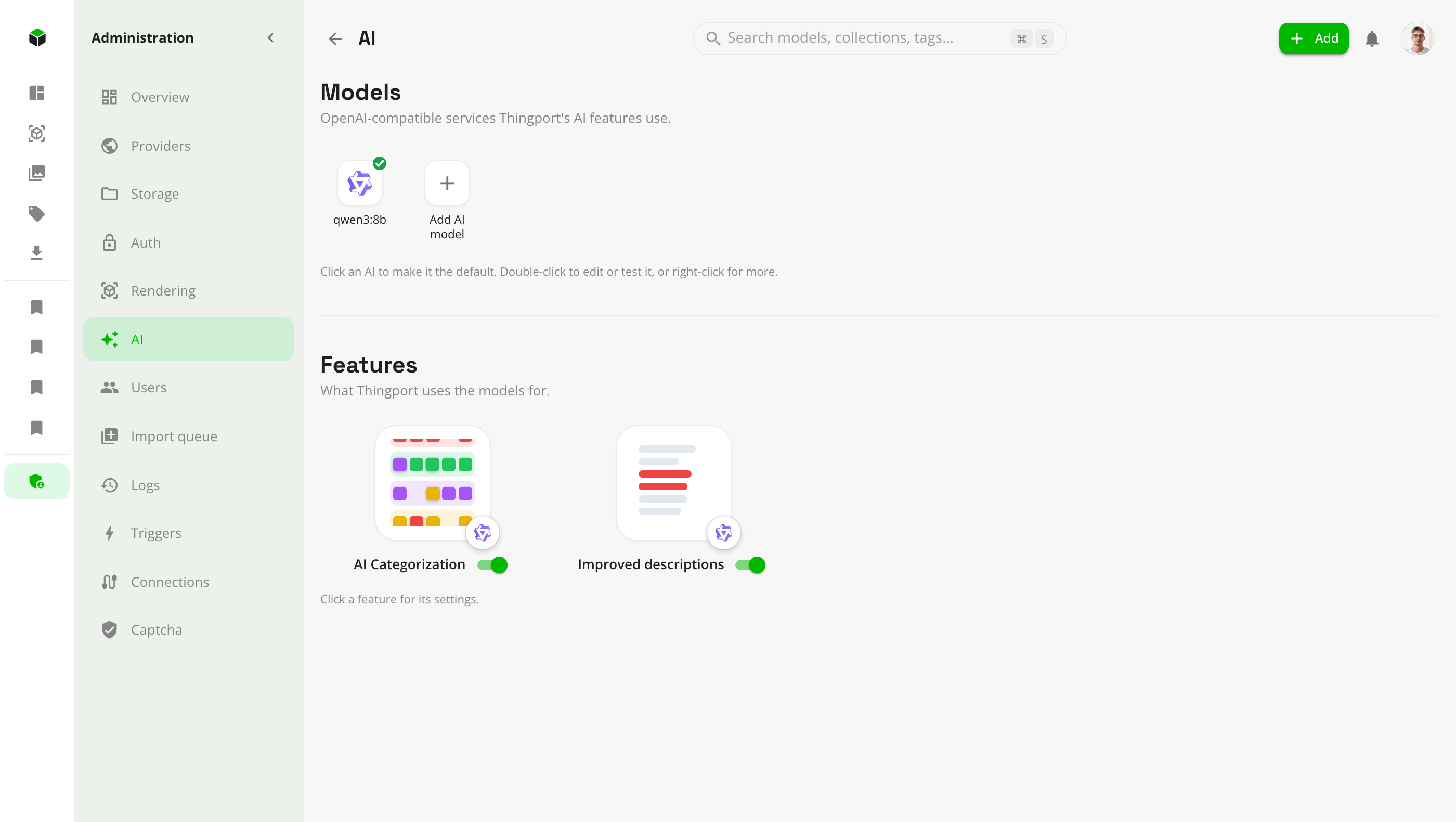
AI categorization
Imported models arrive with whatever category the source site gave them, and uploads arrive with none. AI categorization reads a model’s title, description and tags, and optionally its first photo, and picks the best fit from your own categories. It never makes up a new one.
- Suggest for review (the default): the AI’s pick waits on the model page, marked as an AI suggestion, for you to accept or reject. Every pending suggestion is also listed in one place, to accept or reject in bulk.
- Apply automatically: picks the AI is confident enough about are applied straight away, and the rest are left as suggestions. You set how confident it has to be.
It runs at three moments:
- On import, when Categorize new imports is on. The import never waits for the AI: the category follows a moment later.
- On one model, from its ⋮ → Categorize with AI menu. The result comes as a notification.
- Over your library, from Models → Manage categories & folders → AI Categorization. Choose which models it looks at: uncategorized ones, ones filed in folders, ones the AI categorized before (for example after you’ve added categories), ones categorized on import, and ones you categorized by hand. Progress shows at the bottom of the page, and the run can be stopped there.
A category you picked yourself is left alone unless you include Manual in a run, or confirm it on one model.
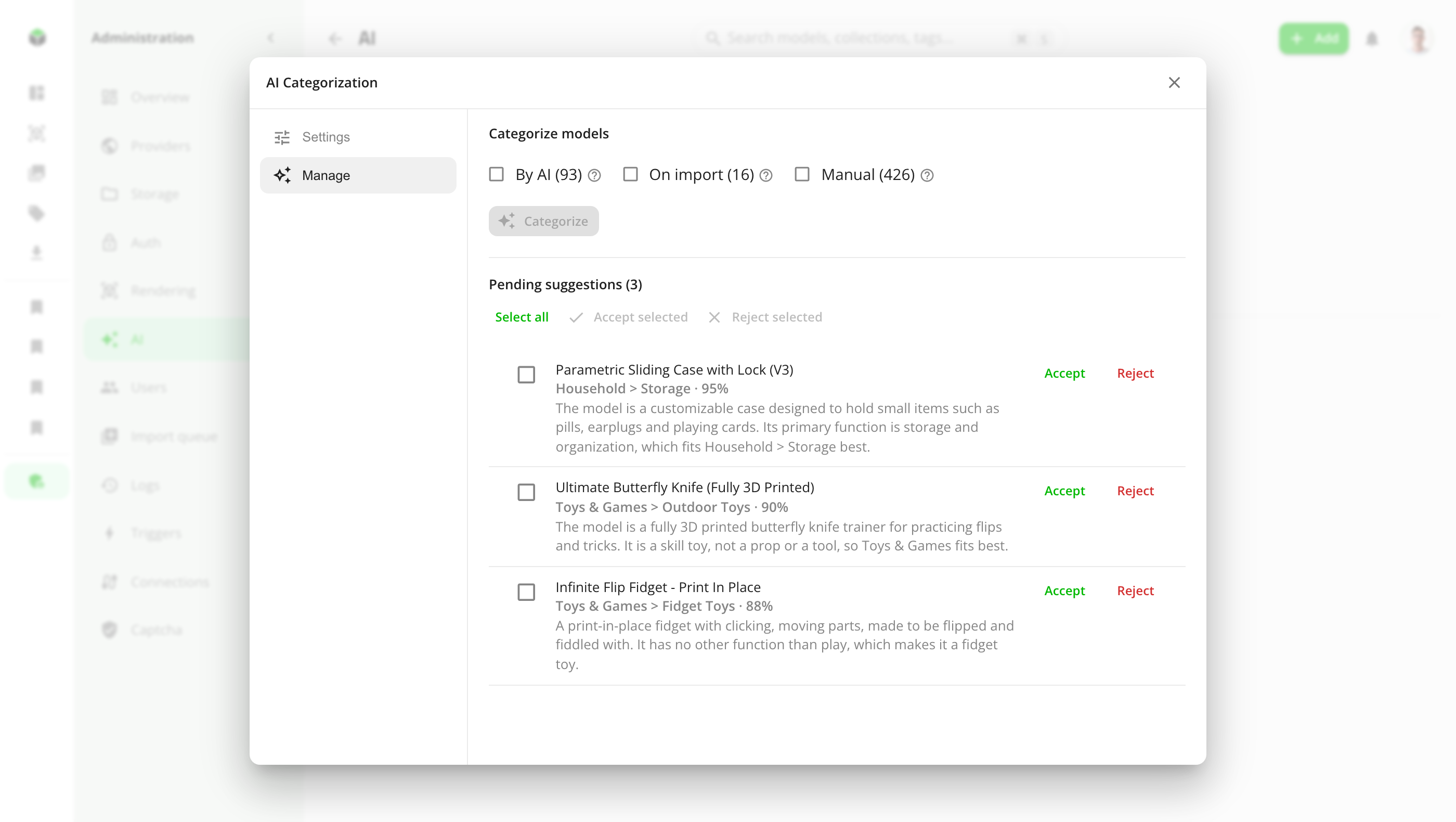
Improved descriptions
Descriptions copied from model sites are often full of links to the designer’s other models, requests for boosts, or written in another language. Improved descriptions tidies them up. Choose what the AI may do:
- Remove self-promotion, such as links to author pages or other models
- Remove other unrelated info, such as boost requests
- Translate descriptions in other languages to English
- Write a description for models that have none (needs the photo to be sent)
- Fix obvious spelling mistakes
- Improve formatting
As with categorization, a new description is either suggested for review, shown next to the current one to keep or not, or applied automatically. The original is always kept, so a description changed by the AI can be compared with it and reverted at any time, from the model page or from the feature’s Manage tab.
It runs on import when Improve descriptions for every new import is on, on one model from its ⋮ → Improve description with AI menu, or over the whole library from the feature’s Manage tab. A run skips models with nothing new since their last check.
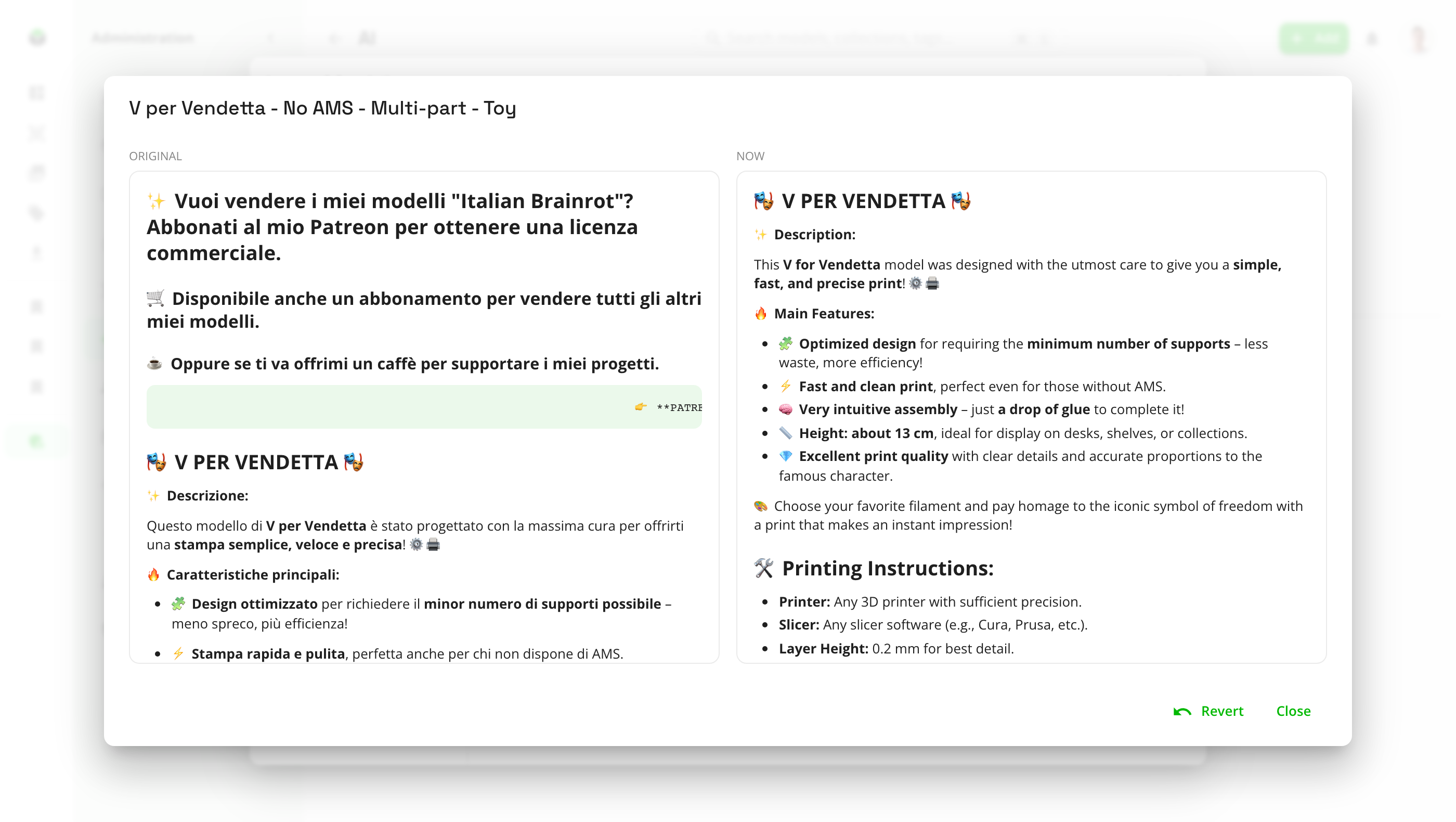
Set up an AI model
Admins add models under Administration → AI → Models → Add AI model.
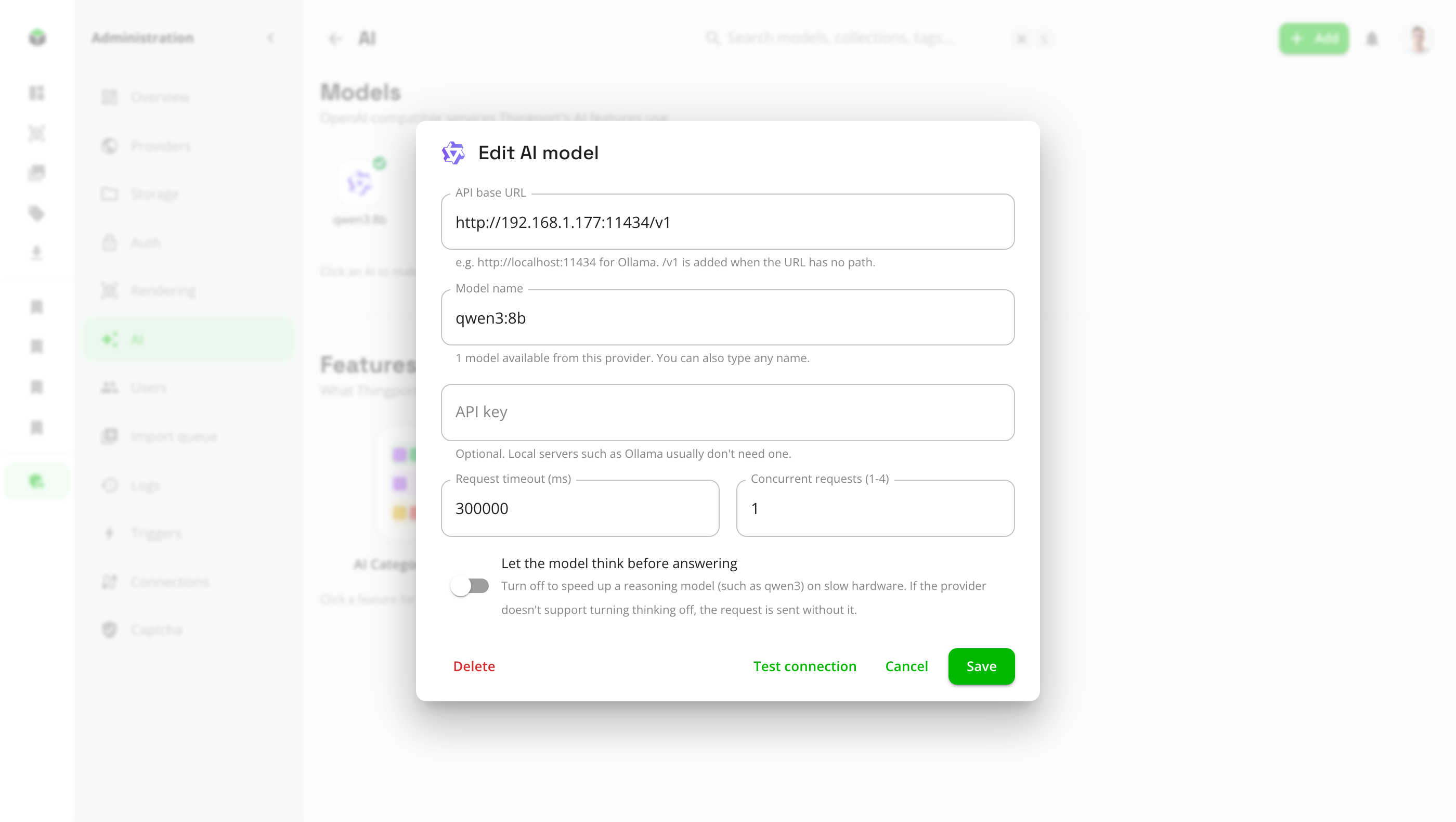
- API base URL: where the provider’s OpenAI-compatible API is.
/v1is added when the URL has no path. - Model name: the models the provider offers are listed as you type, and any other name can be typed in.
- API key: needed by cloud APIs. Local servers such as Ollama usually don’t need one.
- Concurrent requests (1 to 4) and Request timeout: how many models are sent at once, and how long to wait for each answer. Raise the timeout for a slow local model.
- Let the model think before answering: turn it off to speed up a reasoning model, such as qwen3, on slow hardware.
Test connection asks the model to categorize a calibration cube, and saving tests it too, so a wrong URL, key or model name shows up straight away.
| Provider | API base URL | API key |
|---|---|---|
| Ollama | http://<server>:11434 | No |
| LM Studio | http://<server>:1234 | No |
| vLLM | http://<server>:8000 | Usually |
| OpenAI | https://api.openai.com/v1 | Yes |
| OpenRouter | https://openrouter.ai/api/v1 | Yes |
| Google Gemini | https://generativelanguage.googleapis.com/v1beta/openai/ | Yes |
Any other service with an OpenAI-compatible chat completions API that supports structured (JSON schema) output should work as well.
Running the model on the same machine as Thingport? The backend runs in a container, where
localhostmeans the container itself. Use the machine’s LAN address, such ashttp://192.168.1.20:11434, or the service name if Ollama runs in the same Compose file (http://ollama:11434). Ollama only listens onlocalhostby default: setOLLAMA_HOST=0.0.0.0so the container can reach it.
More than one model
Add as many models as you like. Click one to make it the default, which every feature uses unless it’s set to another one with Use AI in its settings. That way, for example, categorization can run on a small local model while descriptions use a bigger one.
Choosing a model
- Small local models (7 to 8 billion parameters, such as
qwen2.5:7borllama3.1:8b) categorize well enough to make suggestions worth reviewing. Bigger ones are more reliable, and better at writing descriptions. - Small models are often sure of themselves even when they’re wrong, so start with Suggest for review. Switch to Apply automatically once you trust the model’s picks, and keep the confidence threshold high.
- Send the first preview image only helps with a model that can see images, such as
qwen2.5vlorllava, or most cloud models.
Turn the features on
Under Administration → AI → Features, switch AI Categorization and Improved descriptions on. Click a feature for its settings: which AI it uses, its mode, whether it runs on import, and whether the photo is sent. Its Manage tab starts a run over your library and lists what’s waiting for review.
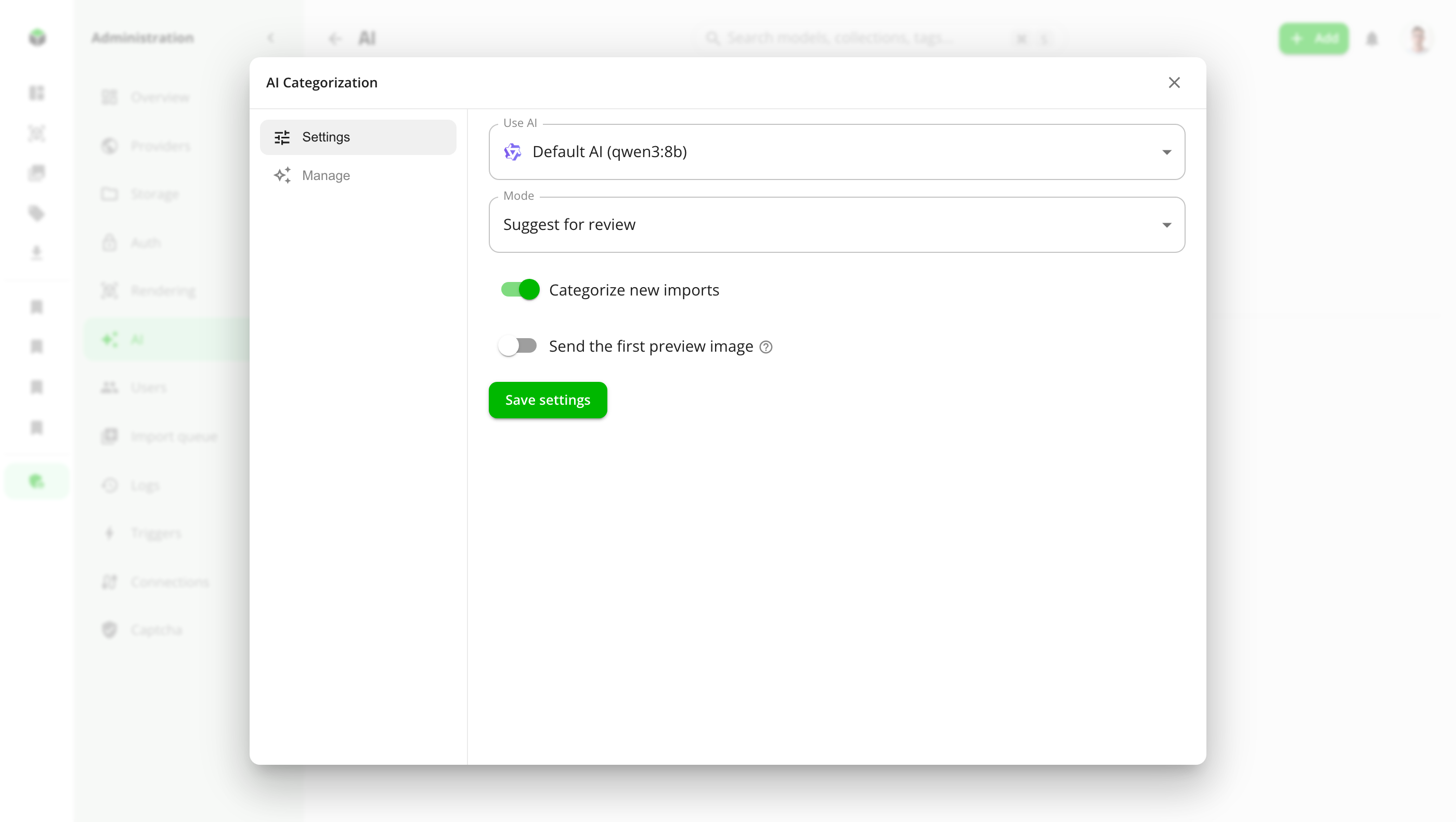
Once a feature is on, it’s there for everyone on this Thingport, and each person’s runs and suggestions cover their own library.
Privacy
With a model on your own hardware, nothing leaves your network. With a third-party API, a model’s title, description and tags are sent to that provider, and its first photo too when Send the first preview image is on. Files are never sent.
Troubleshooting
System Health, under Administration → Overview, checks the default AI model with the rest of Thingport and says what’s wrong:
- Not answering: check that the provider is running and reachable from the backend container (see above), and that the API base URL and key are right.
- Model missing: the provider answered but doesn’t list the model. Check its name, or pull it first
(
ollama pull qwen2.5:7b). - Timed out: a local model may still be loading. Try again, or raise the request timeout.
Every run is recorded in Administration → Logs, with how many models were checked, suggested, applied and failed.